Android apps are compiled for specific CPU architectures. When you download an APK or XAPK outside the Play Store, selecting the wrong version for your device results in a failed installation or immediate crash. Knowing your device's architecture takes under a minute and prevents the most common sideloading error.
What this covers:
Why CPU architecture matters for app compatibility
Three methods to check: Settings, a system info app, and ADB
Understanding ABI strings like
armeabi-v7aandarm64-v8aCommon questions about ARM and ARM64 compatibility
Why Architecture Matters
Android apps can include native libraries compiled for specific processor instruction sets. Games, VPN clients, and apps that interface closely with hardware are the most common examples. When you download an architecture-specific APK and your device uses a different processor type, the native libraries cannot load and the app fails.
The relevant architectures in 2026:
armeabi-v7a (ARM 32-bit): Found in older and budget devices. Apps compiled for this architecture run on both 32-bit ARM and 64-bit ARM64 devices due to backward compatibility, but with some performance cost on 64-bit devices.
arm64-v8a (ARM64 64-bit): The current standard. All modern mid-range and flagship Android devices are ARM64. Apps compiled for ARM64 will not install on 32-bit ARM devices.
x86 / x86_64: Found in a small number of Intel-based Android devices and Android emulators. Less common on physical phones.
Most APK download sites offer separate builds labeled by ABI (Application Binary Interface). Downloading the arm64-v8a version for a device that is armeabi-v7a, or vice versa, causes installation failure.
Method 1: Check in Settings
Some devices expose CPU information in the About Phone section:
Open Settings
Navigate to About Phone, then Hardware Info or Software Information (the exact path varies by manufacturer)
Look for fields labeled Processor, CPU, or Kernel architecture
If you see ARMv8 or AArch64, the device is ARM64. If you see ARMv7, it is ARM 32-bit.
If the settings only show the processor name (Snapdragon 720G, Dimensity 8100, MediaTek Helio G85) rather than the architecture, search for the processor name to find the specification. Any Snapdragon 600 series or higher from 2017 onwards, any Dimensity processor, and any Exynos from around the same period is ARM64.
Method 2: Use a System Information App
A free system information app gives the most direct and readable answer.
Reliable options available on the Play Store:
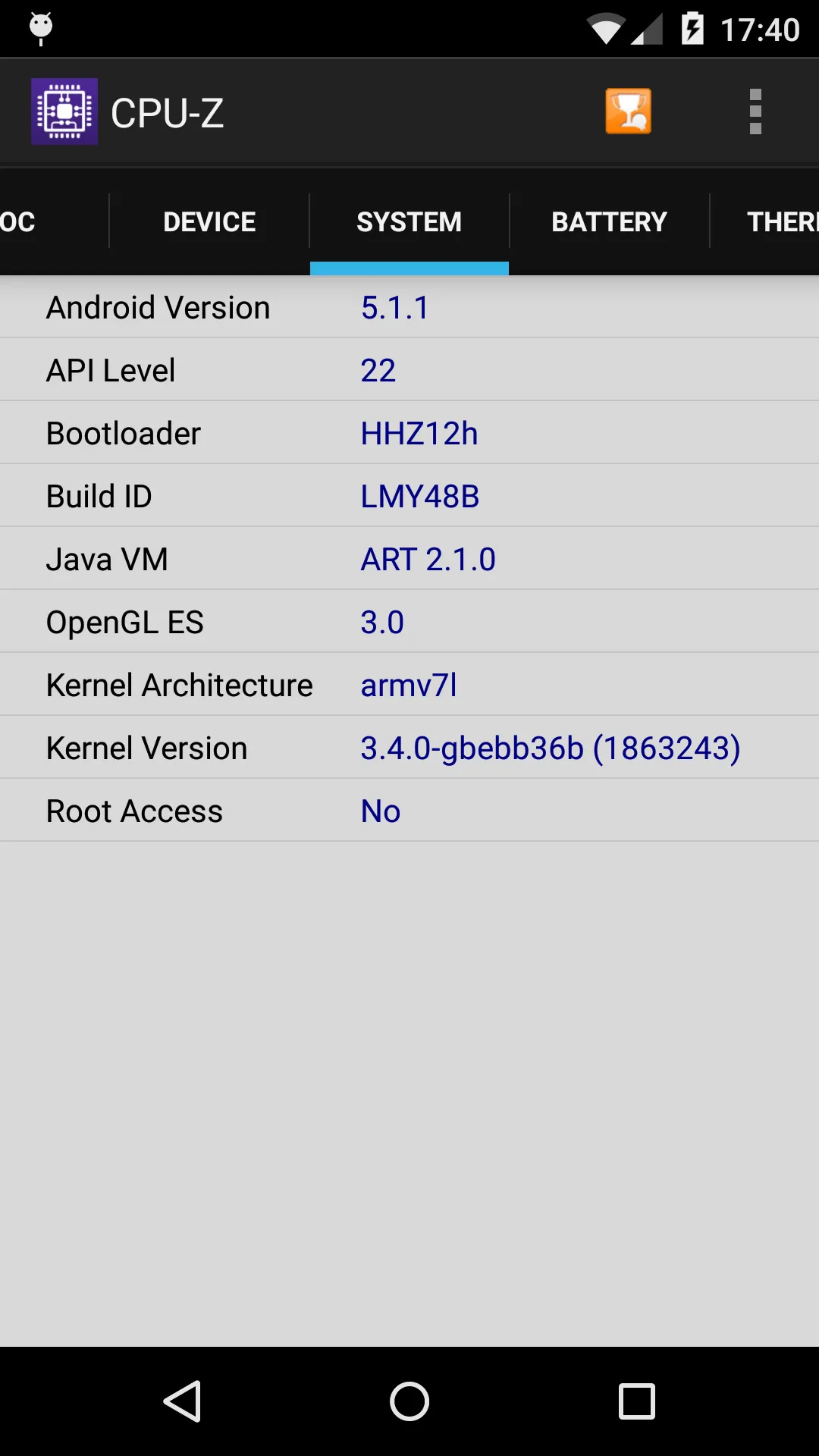
CPU-Z: Long-established, shows detailed CPU specifications including the instruction set
AIDA64: Comprehensive device information, includes ABI list under the CPU or Device section
DevCheck: Clean interface, shows supported ABIs directly on the main screen
After opening any of these:
Navigate to the CPU or System tab
Look for fields labeled Instruction Set, ABI, CPU Architecture, or Supported ABIs
The values to expect:
arm64-v8a— ARM64, 64-bitarmeabi-v7a— ARM, 32-bitx86_64— Intel 64-bit (primarily emulators)x86— Intel 32-bit (primarily emulators)
Many devices list multiple ABIs, showing what they can support. The primary ABI (the first one listed) is what the device is natively. An ARM64 device typically lists arm64-v8a, armeabi-v7a, armeabi — meaning it can run apps compiled for any of those architectures, with ARM64 being native.
Method 3: ADB Command (Developers)
For developers or anyone comfortable with Android Debug Bridge:
Enable Developer Options on the device (tap Build Number in About Phone seven times)
Enable USB Debugging under Developer Options
Connect the device to a computer via USB
Run:
adb shell getprop ro.product.cpu.abi
This returns the primary ABI. To see the full list of supported ABIs:
adb shell getprop ro.product.cpu.abilist
Typical output for a modern ARM64 device:
arm64-v8a,armeabi-v7a,armeabi
This method is also useful when checking the architecture of a device you are managing remotely or through automation.
ARM vs ARM64 in Practice
Can a 32-bit ARM app run on an ARM64 device? Yes. ARM64 devices include a compatibility layer for 32-bit ARM apps. Performance is slightly lower than a native ARM64 build, but the app works. This is why most apps distributed as armeabi-v7a still install and function on modern phones.
Can an ARM64 app run on a 32-bit ARM device? No. The instruction sets are not backward compatible in this direction. An APK built exclusively for arm64-v8a will refuse to install on an armeabi-v7a device.
Can you change your device's architecture? No. The CPU architecture is determined by the physical hardware. A 32-bit ARM device cannot become ARM64 through software changes.
Why do some apps still ship ARM 32-bit builds? Compatibility with older devices is the main reason. Some developers maintain both builds to support the widest possible audience. For apps on the Play Store, the App Bundle system handles this automatically by delivering only the appropriate ABI.
Key Takeaways
ARM64 (arm64-v8a) is the architecture of virtually all Android devices released in the last several years. ARM 32-bit (armeabi-v7a) is found on older and budget devices.
When downloading an APK outside the Play Store, match the ABI to your device. Mismatches cause installation failure.
The fastest check is a system information app like CPU-Z or DevCheck, which shows the supported ABIs directly.
ADB provides the same information from a computer via
adb shell getprop ro.product.cpu.abilist.ARM64 devices can run ARM 32-bit apps through backward compatibility, but 32-bit ARM devices cannot run ARM64 apps.
Conclusion
Checking CPU architecture is a one-time task that most people only need when they encounter an installation failure. The system info app method is the most accessible for most users, the settings path works on many devices without installing anything, and ADB is available for those who prefer the command line.
Once you know the architecture, selecting the correct APK or XAPK variant takes the guesswork out of sideloading.
Ran into an architecture-related installation error? Share the app and error message in the comments.