If you own an older MacBook, iMac, Mac mini, or Mac Pro, chances are you have seen this message at least once:
"This version of macOS is not supported on your Mac."
Your machine may still boot quickly, browse the web without issues, and handle everyday work without complaint, yet it is locked out of newer macOS versions because Apple no longer supports the model. For many people this is not just about wanting new features. Development tools drop support for older macOS versions, security updates end, and employers or application requirements gradually push the minimum version higher.
Replacing an older Mac is not always practical, and that is where OpenCore Legacy Patcher comes in.
What this covers:
Whether upgrading is the right choice for your situation
Which Macs are compatible with OCLP
A complete step-by-step installation walkthrough
Post-install root patches and why they matter
Troubleshooting common problems after installation
Why Apple Stops Supporting Older Macs
Each new macOS version introduces new security technologies, updated graphics frameworks, modern Wi-Fi and Bluetooth drivers, improved power management, and hardware-specific features like hardware-accelerated machine learning. Supporting every Mac model indefinitely would require maintaining a large and growing matrix of hardware combinations and drivers, and at some point engineering resources shift toward newer hardware.
In many cases, an older Mac is not incapable of running a newer macOS version. It simply is not officially supported anymore.
Should You Upgrade?
Before downloading anything, it is worth asking whether you actually need to upgrade.
Upgrading makes sense if development tools or Xcode now require a newer macOS version, if browsers are dropping support for your current version, if security updates have ended, or if an application you depend on now requires Sonoma, Sequoia, or Tahoe.
Staying on your current version may be the better call if everything works as you need it to, if your Mac handles only basic tasks that are not affected by version requirements, or if you depend on legacy applications that may not work correctly on a newer OS.
Just because you can upgrade does not automatically mean you should.
What Is OpenCore Legacy Patcher?
OpenCore Legacy Patcher (OCLP) is an open-source project that enables many unsupported Intel Macs to install and run newer versions of macOS. It works by preparing your Mac to boot a newer macOS version, providing compatibility fixes for older hardware, restoring graphics support, and installing post-install patches that bring back functionality that would otherwise be missing.
OCLP is actively maintained and has become the standard solution for extending Intel Mac compatibility beyond Apple's official support window.
Which Macs Are Compatible?
Many Macs released between 2008 and 2019 are supported, including models across the MacBook Pro, MacBook Air, iMac, Mac mini, and Mac Pro lines. Exact compatibility depends on the year, GPU, CPU, and wireless chipset of your specific model.
Always verify your exact model against the current OCLP compatibility list on the project's GitHub repository before proceeding. Support can change between OCLP releases, and the GitHub page reflects the current state accurately.
Things to Know Before You Start
This is not officially supported by Apple. Apple does not provide support for OCLP installations, and you will not be able to contact Apple Support for help with issues that arise from it.
Every major macOS update may require new patches. After installing a macOS update, you may need to reinstall root patches. This is expected behavior, not a sign something went wrong.
Performance varies by hardware. Many Macs run Sonoma, Sequoia, or Tahoe well, but a 2012 Mac will naturally perform differently from a 2019 model. Manage expectations accordingly.
Some features may be limited or unavailable. Depending on your Mac, AirDrop, Sidecar, Continuity Camera, Apple Intelligence, and certain graphics acceleration features may have limitations or not function at all.
What You Will Need
A compatible Intel Mac
A stable internet connection (the macOS download is large)
A USB flash drive, 32 GB or larger
Your Mac's power adapter connected throughout
An external drive or adequate space for a full backup
Several hours of free time, particularly for the download and install steps
Step 1: Back Up Your Mac
Never skip this step. Things can go wrong during any major system change, and a current backup is your only reliable recovery option.
Use Time Machine, Carbon Copy Cloner, or another backup tool you trust. Before continuing, verify that the backup completed successfully and that you can access it.
Pay particular attention to files that are not stored anywhere else: SSH keys, configuration files, source code, virtual machines, local password manager databases, and anything else that would be difficult or impossible to recreate.
Step 2: Check Compatibility
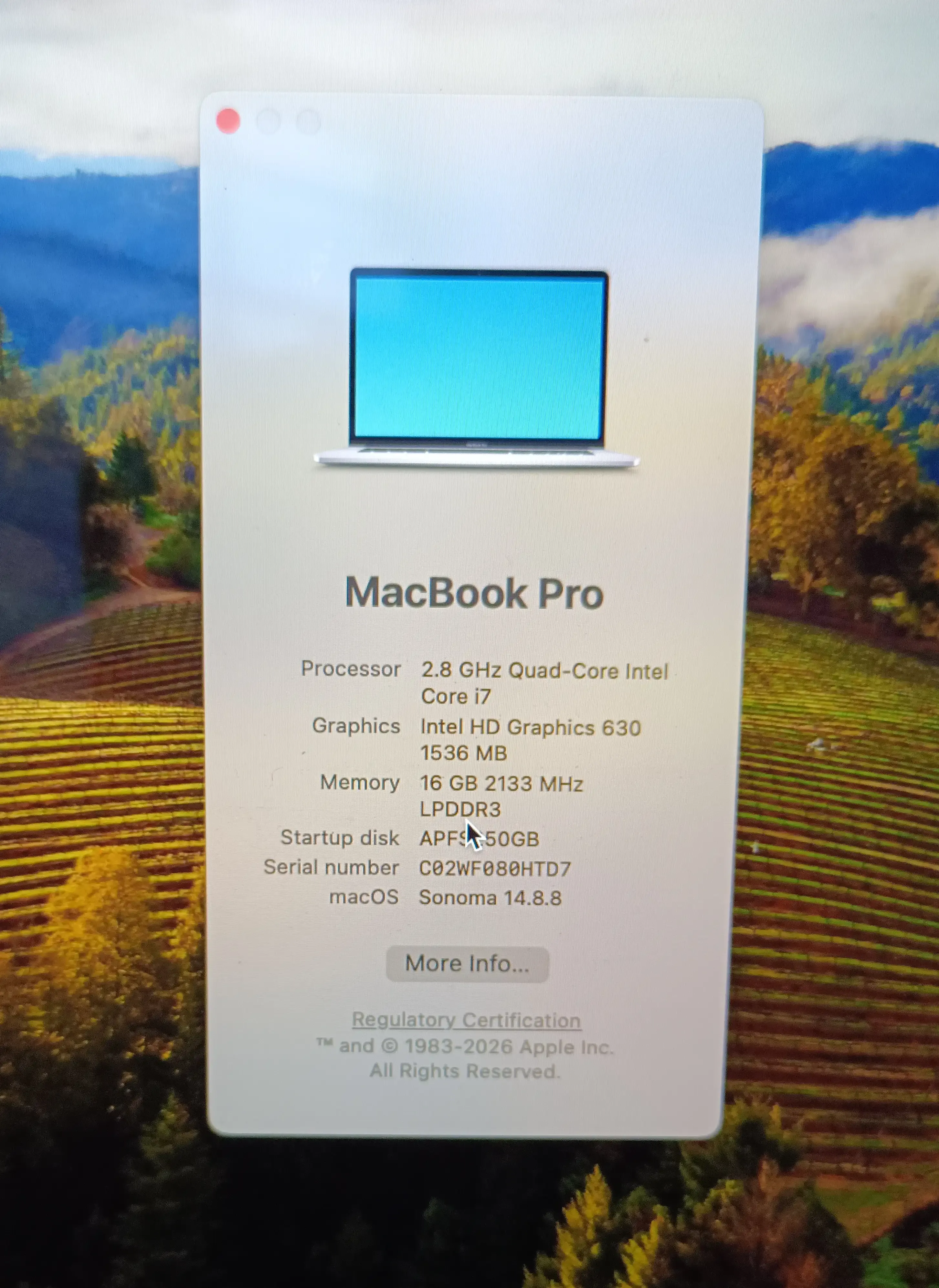
Go to Apple Menu → About This Mac and note your model, year, processor, RAM, and storage. Then check your model against OCLP's compatibility list on GitHub.
Step 3: Download OpenCore Legacy Patcher
Download OCLP only from its official GitHub repository. Avoid unofficial websites and mirror downloads, and do not use an outdated version. Using an OCLP release that does not match your target macOS version is one of the most common causes of installation problems.
Check the release notes on GitHub before downloading, particularly if you are targeting a recently released macOS version.
Step 4: Create the macOS Installer
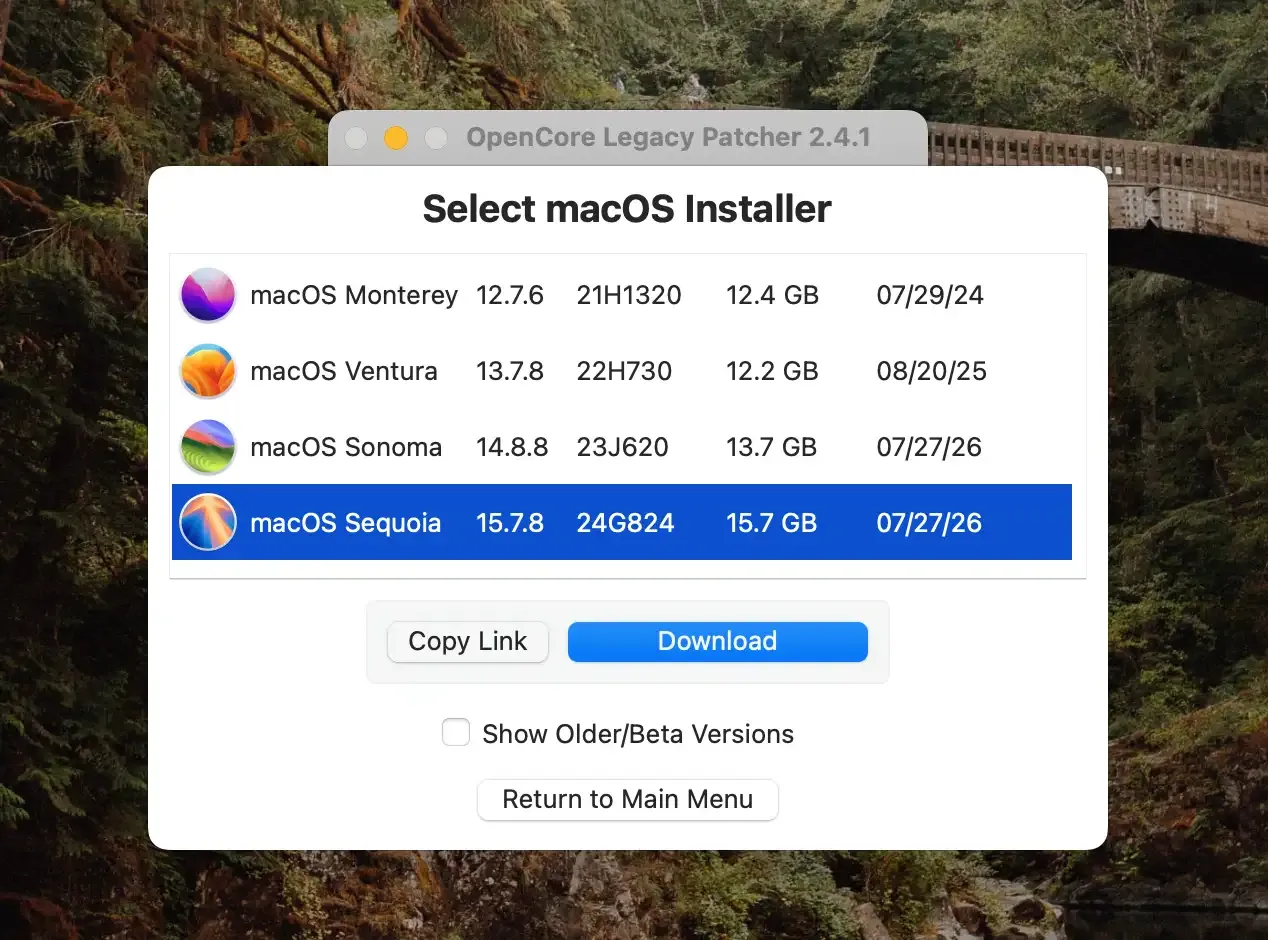
Open OCLP and use the built-in option to download macOS and create a bootable USB installer. Select your target macOS version from the list provided.
The download size is several gigabytes. Depending on your connection, this can take anywhere from 20 minutes to over an hour. Keep your Mac plugged in and connected throughout.
Step 5: Build and Install OpenCore onto the USB Drive
In OCLP, use the Build and Install OpenCore option. Accept the recommended settings unless you have a specific reason to change them, then install OpenCore onto the USB installer you just created.
Do not interrupt this process. If it fails, check that your USB drive has sufficient space and try again with the drive reformatted.
Step 6: Boot from the USB Installer
Restart your Mac and hold the Option (⌥) key as it starts up. The boot picker will appear. Select EFI Boot, which is the OpenCore entry on your USB drive, then choose Install macOS from the menu that follows.
If you do not see EFI Boot in the picker, verify that OpenCore was installed onto the USB drive correctly in the previous step.
Step 7: Install macOS
The installation will proceed through several phases and may reboot multiple times. This is expected. The full process typically takes 30 to 60 minutes depending on your hardware.
Do not force shut down your Mac during installation. If the screen appears stuck for an extended period, give it more time before assuming something is wrong. Progress bars during macOS installation are notoriously unreliable indicators of actual progress.
After the final reboot, your Mac will boot into the new macOS setup flow. Complete the initial setup before moving to the next step.
Step 8: Install Post-Install Root Patches
This step is the one most often skipped, and skipping it causes most of the problems people encounter after installation.
Open OpenCore Legacy Patcher on your newly installed macOS and select Post-Install Root Patch. Install every patch that OCLP recommends for your hardware, then restart.
Without root patches, you are likely to encounter missing Wi-Fi, degraded graphics performance, broken Bluetooth, or display issues. These are not installation failures. They are the expected result of skipping this step.
Recommended Upgrade Path
If you are currently several macOS versions behind, upgrading incrementally rather than jumping straight to the latest version reduces the risk of compatibility issues. A reasonable path:
Update to the latest point release of your current macOS first
Then move to Ventura (13.x) and update to its latest release
Then Sonoma (14.x)
Then Sequoia (15.x)
Then Tahoe (26.x)
Installing the latest point release of each version before moving to the next ensures firmware is as current as possible and gives OCLP time to address compatibility issues with each release.
Troubleshooting
Mac won't boot after installation. Try resetting NVRAM, boot through OpenCore again using the USB drive, verify you are selecting EFI Boot in the picker, and rebuild OpenCore if necessary.
Black screen after boot. This is almost always caused by missing root patches. Boot through OpenCore, open OCLP, and install Post-Install Root Patches, then restart.
Wi-Fi not working. The most common cause is missing root patches. If patches are installed and Wi-Fi is still absent, verify that your Mac's wireless chipset is supported under your chosen macOS version in the OCLP compatibility documentation.
Bluetooth missing. Install root patches. If Bluetooth remains unavailable after patching, check OCLP's documentation for your specific hardware.
Graphics acceleration not working. Symptoms include choppy animations, slow Mission Control, laggy Launchpad, and poor video playback. Install root patches.
"Not enough space" during installation. Free at least 35 to 50 GB before attempting installation. More free space generally produces a smoother install process.
Mac keeps booting into the installer. Your startup disk is likely not set correctly. Open System Settings → General → Startup Disk and select your internal macOS installation, or boot through OpenCore and choose the installed system from the menu.
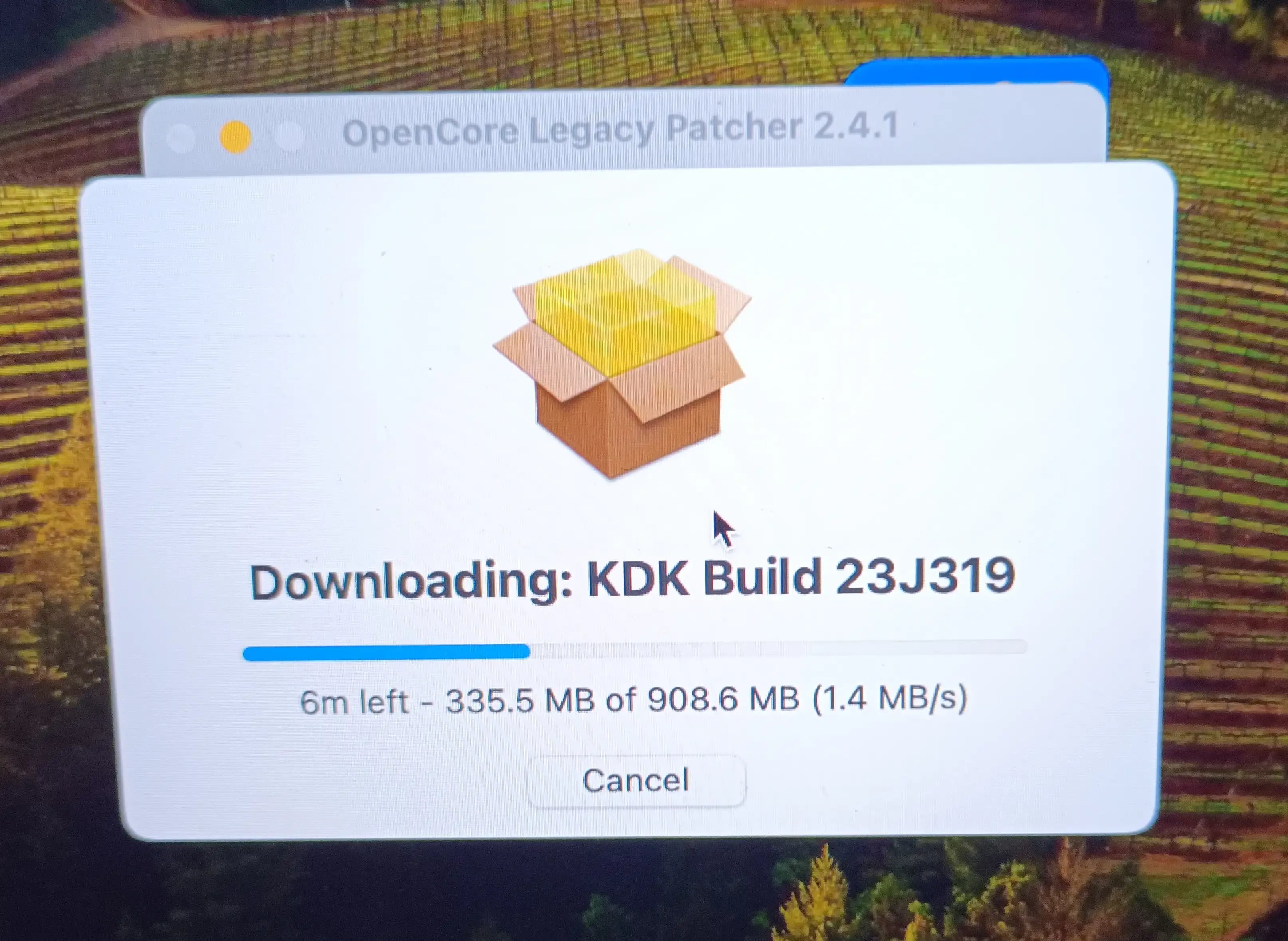
OCLP asks for a Kernel Debug Kit (KDK). Some newer macOS versions require a KDK before root patches can be installed. If prompted, ensure you are connected to the internet and let OCLP attempt the download automatically. If the automatic download fails, verify you are using the latest OCLP release and try again. Using a KDK that does not match your installed macOS version will prevent patches from installing correctly.
FileVault considerations. If FileVault is enabled, you may need to unlock your disk during boot. Some users prefer to temporarily disable FileVault before a major upgrade and re-enable it once the system is confirmed working.
Installing macOS updates after setup. Before applying any macOS update, check whether your current OCLP version supports it. Update OCLP first if recommended, install the macOS update, then reapply Post-Install Root Patches if prompted. Avoid installing major macOS version upgrades on the day they are released. Give OCLP a few days to confirm compatibility and push an updated release if needed.
Frequently Asked Questions
Is OpenCore Legacy Patcher safe to use?
OCLP is open source and widely used, which means its code is publicly reviewable. Because it modifies the boot process to enable unsupported configurations, there is inherent risk in using it. Keeping a current backup before any major change is the most important precaution you can take.
Will I lose my files?
Not if the installation proceeds normally. That said, always treat a major system change as a situation where something could go wrong. A verified backup before you start is non-negotiable.
Does OCLP work on Apple Silicon Macs?
No. Apple Silicon Macs receive official support from Apple and do not require OCLP.
Can I go back to my previous macOS version?
Yes. You can erase the drive and reinstall a supported macOS version using Recovery or a bootable installer, then restore from your backup.
Will my Mac perform like a newer machine?
No. OCLP extends the useful life of older hardware, but it cannot overcome the physical limitations of an aging CPU, GPU, or storage drive.
Key Takeaways
Back up your Mac and verify the backup before doing anything else. This is not optional.
Confirm your exact model is supported using OCLP's compatibility list on GitHub before downloading anything.
Download OCLP only from the official GitHub repository and check that you are using the latest release.
Post-Install Root Patches are required after installation. Skipping them causes most of the Wi-Fi, Bluetooth, and graphics problems people encounter.
Check OCLP compatibility before applying any macOS update, and reapply root patches after each major update.
Upgrading incrementally across major versions is safer than jumping several versions at once.
Conclusion
OpenCore Legacy Patcher is one of the most effective ways to extend the working life of an Intel Mac that Apple no longer supports officially. For many users it provides access to modern macOS without the immediate cost of a new machine, and for developers it can be the difference between a machine that still supports current tooling and one that does not.
The process requires care, particularly around backups and the post-install patching step, but it is well within reach for anyone comfortable working through a multi-step guide. Keep OCLP updated, reapply patches after major macOS updates, and the setup should remain stable for as long as the project continues to support your hardware.
If you run into an issue not covered here, the OCLP GitHub Discussions page and the MacRumors OCLP thread are the two best places to find help from people running the same hardware.
Which Mac model are you running OCLP on, and which macOS version did you upgrade to?