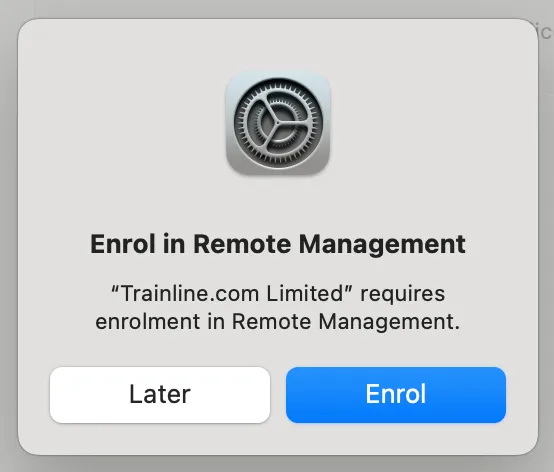
You erase a used Mac, reinstall macOS, connect to Wi-Fi during setup, and everything seems fine. Then a screen appears asking you to enroll the computer in Remote Management for an organization you have never heard of.
You do not have a company account. You bought the Mac from a local store or an online marketplace. So what is going on?
This usually means the Mac is still registered to an organization through Apple's device management system, and reinstalling macOS does not remove that registration. That does not automatically mean the Mac is stolen or unusable. It may simply be a used business or school computer that was not properly removed from the previous owner's management system before it was sold. There is an important catch, though: you cannot legitimately remove Automated Device Enrollment yourself. The organization that enrolled the device, or the seller, needs to release it.
What this covers:
What Remote Management is and why it appears after a clean install
Why erasing the Mac does not remove the enrollment
What the seller and previous organization need to do
How to avoid buying an enrolled Mac in the future
Common questions about Remote Management and MDM
What Is Remote Management on a Mac?
Remote Management is part of Apple's Mobile Device Management (MDM) system. Organizations such as businesses, schools, universities, and government bodies use MDM to configure and control Macs that belong to them. This can include installing applications, configuring Wi-Fi, enforcing security settings, requiring FileVault encryption, applying restrictions, and managing user accounts.
For organization-owned Macs, Apple provides Automated Device Enrollment, which automatically connects a Mac to an organization's MDM service during setup. This is what causes the Remote Management screen to appear even on a freshly erased machine.
Why Does It Appear After Erasing the Mac?
The enrollment is not stored as a file in your macOS installation. With Automated Device Enrollment, the Mac queries Apple's servers during the setup process to check whether it has been assigned to an organization's MDM service. If it has, the Mac contacts that service and begins enrollment automatically.
This is why you can erase and reinstall macOS completely and still encounter the Remote Management screen during the next setup. The assignment exists at the Apple server level, not on the Mac's storage.
Why Would a Used Mac Still Be Enrolled?
There are several straightforward explanations.
An employee may have been given a company Mac and later returned or sold it without the organization's IT department releasing it first. Organizations also regularly sell older hardware when refreshing their fleet, and devices sometimes slip through without being properly removed from Apple Business or Apple School Manager. A used computer retailer may have purchased a batch of Macs without realizing some were still associated with an organization.
Apple provides organizations with a specific process for releasing devices they no longer own. When a device is released from Apple Business, it can no longer be enrolled through that organization's MDM service, but this step has to be taken deliberately. If it was not done before the Mac was sold, the enrollment persists.
Can You Remove Remote Management Yourself?
If the Mac is enrolled through Automated Device Enrollment, reinstalling macOS will not solve the underlying problem. The device needs to be removed from the organization's management system.
An authorized administrator at the organization can find the device in Apple Business or Apple School Manager under Devices → Inventory, select it, and choose Release from Organization. Apple notes this action cannot be undone and that the device needs to be erased and restored afterward.
Organizations can also configure Automated Device Enrollment to prevent users from removing the management profile themselves. If you do not see an option to remove management in System Settings, this is likely why. It is not a bug; it is a deliberate setting.
What to Do If You Bought the Mac Used
Contact the seller first. Send them a photo of the Remote Management screen, the Mac's serial number, your receipt, and the date of purchase. Explain that the device is still enrolled in an organization's MDM system and ask them to have it properly released.
Do not accept "just reinstall macOS again" as a resolution. If the Mac is still assigned to an organization through Automated Device Enrollment, another reinstall will bring you back to the same screen.
If the seller says they have no idea what Remote Management is or insists the screen is normal, treat that as a red flag. A personal Mac that has never belonged to an organization will not ask you to enroll in an unfamiliar company's device management system during setup.
If you purchased from a legitimate retailer, ask them to resolve the enrollment or provide a refund. If you bought from an individual, give them a reasonable opportunity to contact the previous organization. If they refuse or disappear, be cautious about continuing to use the device.
What the Previous Organization Needs to Do
The organization's IT administrator needs to locate the Mac in Apple Business or Apple School Manager, select it under the device inventory, and release it from the organization. After the release is completed, the Mac needs to be erased and restored. Once it is no longer assigned to the organization's MDM service, the normal macOS setup process will proceed without requiring enrollment.
Apple does not handle this release on behalf of individuals. The organization that holds the device record is responsible for releasing it. If the Mac was legitimately sold to you, the path is: contact the seller, who contacts the previous organization, whose IT administrator completes the release.
What About Removing an MDM Profile in System Settings?
There is an important distinction between a standard enrollment profile and Automated Device Enrollment. Some Macs have a device enrollment profile that the user is permitted to remove through System Settings. When this profile is removed, associated configuration profiles, settings, and managed apps are also removed.
Automated Device Enrollment is different. Organizations can configure it so the user cannot remove the management profile at all, which is common for supervised devices. This is why removing the profile through System Settings may not be an option, and why erasing and reinstalling macOS does not clear the enrollment.
Is Remote Management the Same as Activation Lock?
No. These are two separate systems.
Remote Management and MDM are used by organizations to configure and control their devices. Activation Lock ties a device to an Apple Account or an organization through Apple's activation security features, preventing anyone else from activating the device.
A Mac can have one without the other, and resolving Remote Management does not necessarily resolve an Activation Lock situation. If you are buying a used Mac, confirm that both issues are fully resolved before completing the purchase.
How to Check a Used Mac Before Buying
Do not just check whether the Mac boots. Ask the seller to erase it and allow you to go through the initial setup process yourself, connected to Wi-Fi. If a Remote Management screen appears for an organization you do not recognize, stop and ask the seller to resolve it before paying.
Where possible, do not accept a screenshot of the resolved device as proof. Test the actual Mac after the seller confirms the device has been released.
Frequently Asked Questions
Does factory resetting remove Remote Management?
Not if the Mac is still assigned to an organization's Automated Device Enrollment system. It can be enrolled again during setup after being erased. The assignment needs to be removed at the organization level.
Is a Remote Management screen proof the Mac is stolen?
No. It only means the Mac is associated with an organization's MDM system. A legitimate used corporate Mac can still show this screen because the previous owner did not release it before selling it.
Can the previous organization release the Mac remotely?
Yes. An authorized administrator can manage the device record through Apple Business or Apple School Manager without physically having the Mac.
What happens after the Mac is released?
Apple states the device needs to be erased and restored after being released from Apple Business. Once it is no longer assigned to the organization's MDM service, setup proceeds normally without a Remote Management prompt.
Can I avoid the enrollment by setting up the Mac without internet?
This is not a reliable solution and does not resolve the underlying enrollment. Automated Device Enrollment is designed to work during activation and setup, and avoiding the internet during that process does not change the device's assignment status in Apple's system. The correct solution is to have the device released by the organization.
Key Takeaways
Remote Management means the Mac is enrolled in an organization's MDM system, usually through Automated Device Enrollment.
Erasing and reinstalling macOS does not remove this enrollment. The Mac queries Apple's servers during setup and can be re-enrolled automatically.
You cannot legitimately remove Automated Device Enrollment yourself. The organization that enrolled the device needs to release it from Apple Business or Apple School Manager.
If you bought the Mac used, contact the seller with proof of purchase and ask them to have the device released.
After release, Apple requires the Mac to be erased and restored before it can be set up normally.
Remote Management and Activation Lock are separate systems. Resolve both before treating a used Mac as ready to use.
When buying a used Mac, always test the setup process connected to Wi-Fi before handing over payment.
Conclusion
A Remote Management screen after buying a used Mac is alarming, particularly when you have just erased and reinstalled macOS. The explanation is usually straightforward: the Mac is still associated with an organization through Apple's Automated Device Enrollment, which is designed to survive a full erase and persist across reinstalls.
If you bought the Mac legitimately, the path forward is through the seller. Provide proof of purchase, ask them to contact the previous organization, and have an IT administrator release the device from Apple Business or Apple School Manager. Once released, the Mac can be erased and set up normally.
And if you are buying a used Mac in the future, test the full setup process, connected to the internet, before completing the transaction. A Mac that boots is not necessarily a Mac that is ready for its next owner.
Did you encounter Remote Management on a used Mac? How did you get it resolved?